
故障解释:
With the recent updates of Windows 11 (24H2, 25H2, 26H1), Microsoft introduced a new Windows Hardware Compatibility Program (WHCP), which protects a Windows system against installing drivers which are not signed for WHCP. X-Rite is currently working on updating drivers, DLLs and applications for all current products to get these installed and working successfully on the new Win11 environments.
But please note that the support for i1Pro 2 (Rev E) and iO2 devices has been ended on January 31st, 2025 (sales of i1Pro 2 / iO2 ended in 2019). It is unfortunately no longer possible to request any service or individual technical support for these devices, and it is unfortunately not planned to update the drivers and applications for Win 11 WHCP compatibility.
随着 Windows 11 的最新更新(24H2、25H2、26H1),微软推出了一项新的 Windows 硬件兼容性程序(WHCP),该程序可保护 Windows 系统,防止安装未经过 WHCP 签名的驱动程序。X-Rite 目前正在对所有现有产品进行驱动程序、DLL 和应用程序的更新,以便在新 Win11 环境中成功安装并正常运行。
但请注意,对 i1Pro 2(版本 E)及 iO2 设备的支援已于 2025 年 1 月 31 日终止(i1Pro 2/iO2 的销售已于 2019 年结束)。很遗憾,目前已无法为这些设备申请任何服务或个体技术支持,而且很遗憾地,针对 Win 11 WHCP 兼容性更新驱动程序和应用程序的计划也已不复存在。
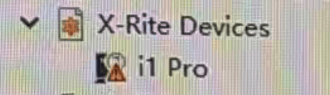
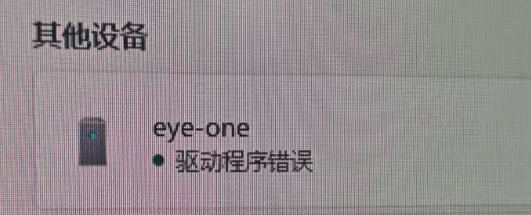
故障表现为:
解决方案:
1-系统关闭驱动签名,但重启后可能失效2.1 进入高级重启模式
这是一个系统级的组合键操作:
1. 点击“开始”菜单,找到电源按钮。
2. 按住键盘上的 Shift 键不放,同时点击 “重启”。
2.2 导航至启动设置
电脑重启后不会直接进入桌面,而是进入蓝色的“选择一个选项”界面。请按以下路径操作:
1. 点击 “疑难解答”。
2. 选择 “高级选项”。
3. 点击 “启动设置”,然后点击右下角的 “重启” 按钮。
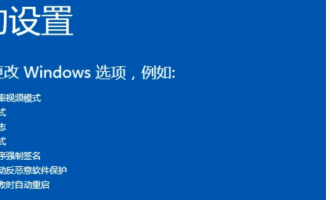
2.3 选择禁用强制签名
再次重启后,屏幕会列出一排选项。直接按键盘上的 F7 键(对应选项:禁用驱动程序强制签名)。系统进入桌面后,请立即安装你的驱动程序,下次重启电脑时,保护机制会自动恢复。
2-系统进入测试模式
1.以管理员身份运行cmd;
2.在令行四提示符”输入bcdedit/set testsigning on“回车,然后命令行提示符会显示操作成功完成”,就打开Windows测试模式了。
3.重启电脑后,桌面右下角出现了“测试模式”的水印。
如果仍无法解决,可联系我们获取其他解决方案。快速技术支持 18519231492。